 Notify Both
How to set up Notify Both on Xiaomi, Redmi and POCO
HyperOS switches off a few settings that Notify Both needs. This guide shows each one. It takes about two minutes.
Before you start
Open Notify Both. Under Setup you see five steps. Each step has a button that opens the right settings screen, and shows a ✓ green tick once it is done. When all five are green, the top of the app says Setup complete.
The five steps at a glance:
- Allow notification access so the app knows when a notification makes a sound.
- Turn on Autostart so HyperOS lets the app run in the background.
- Remove battery restrictions: allow background usage, choose Unrestricted, and set Battery saver to No restrictions.
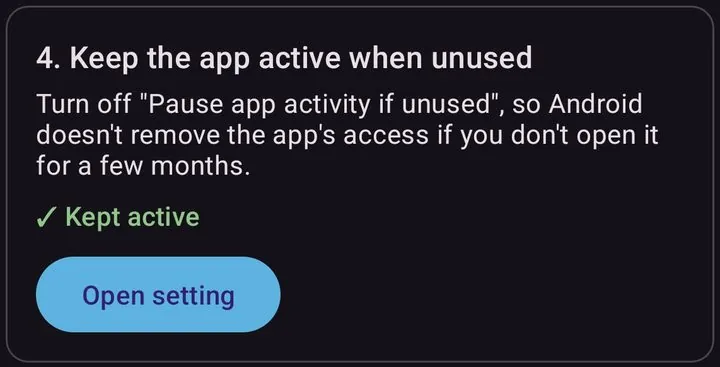
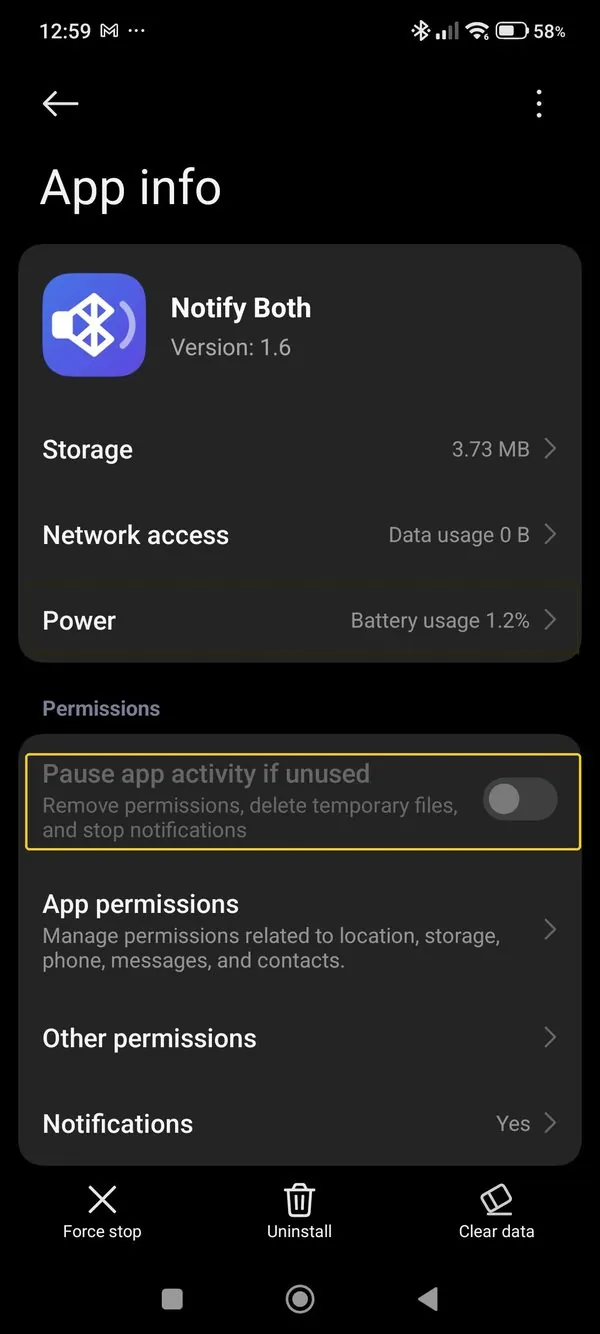
- Turn off "Pause app activity if unused" so Android keeps the app's access.
- Set the alarm volume at least as high as the notification volume.
Why these settings matter: how HyperOS handles notification sounds with Bluetooth.
The screens below are from a POCO phone with HyperOS. On your phone the names may differ slightly.
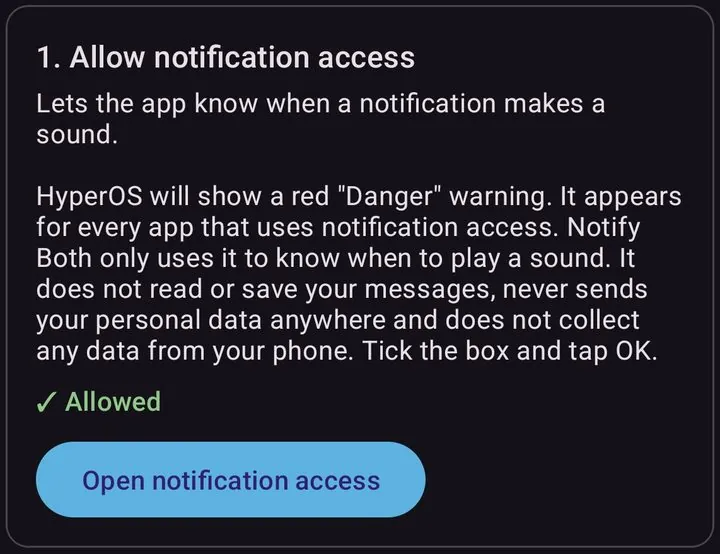
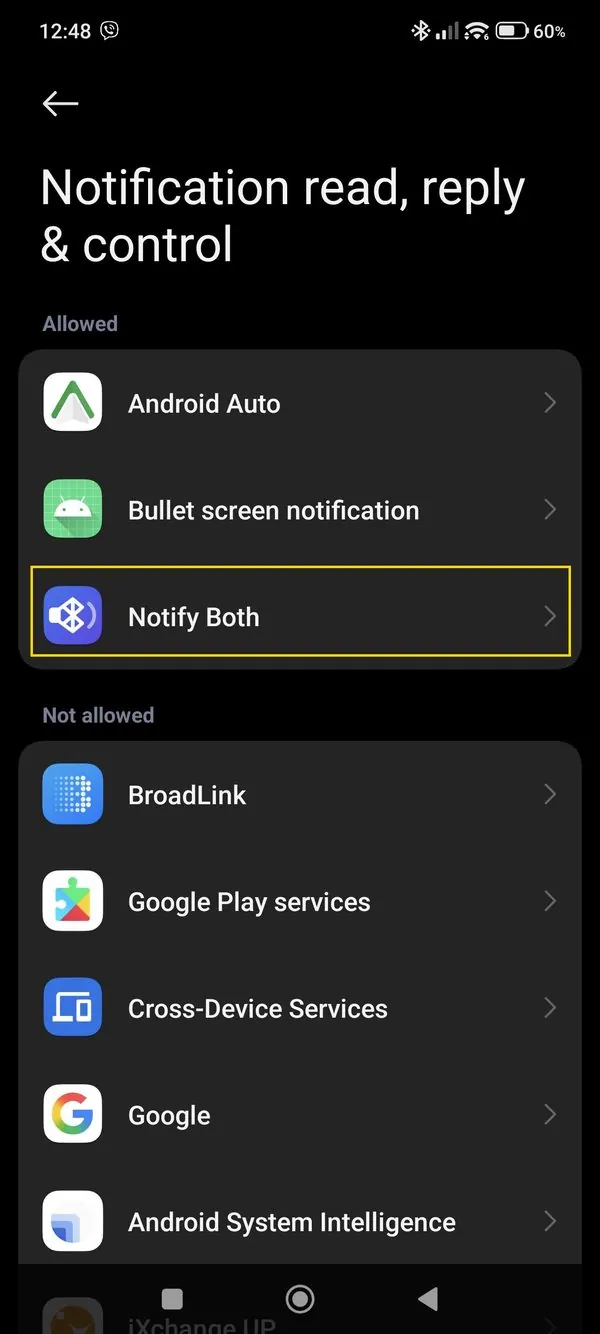
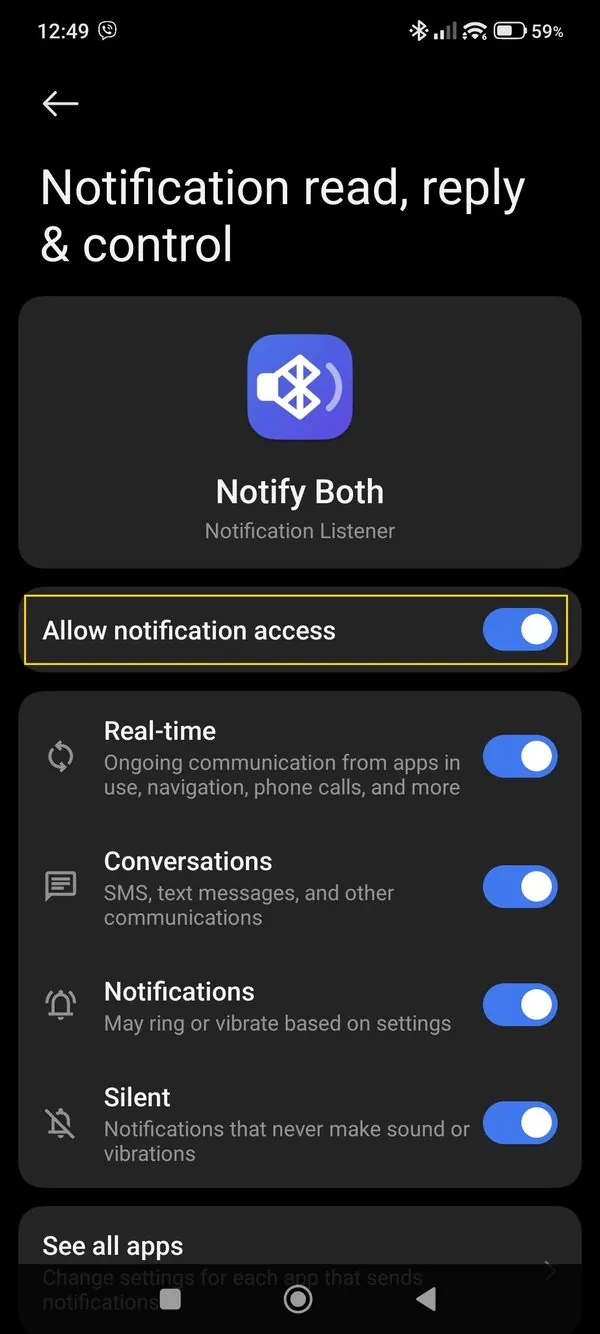
Allow notification access
Lets the app know when a notification makes a sound.
Swipe to see all pictures →
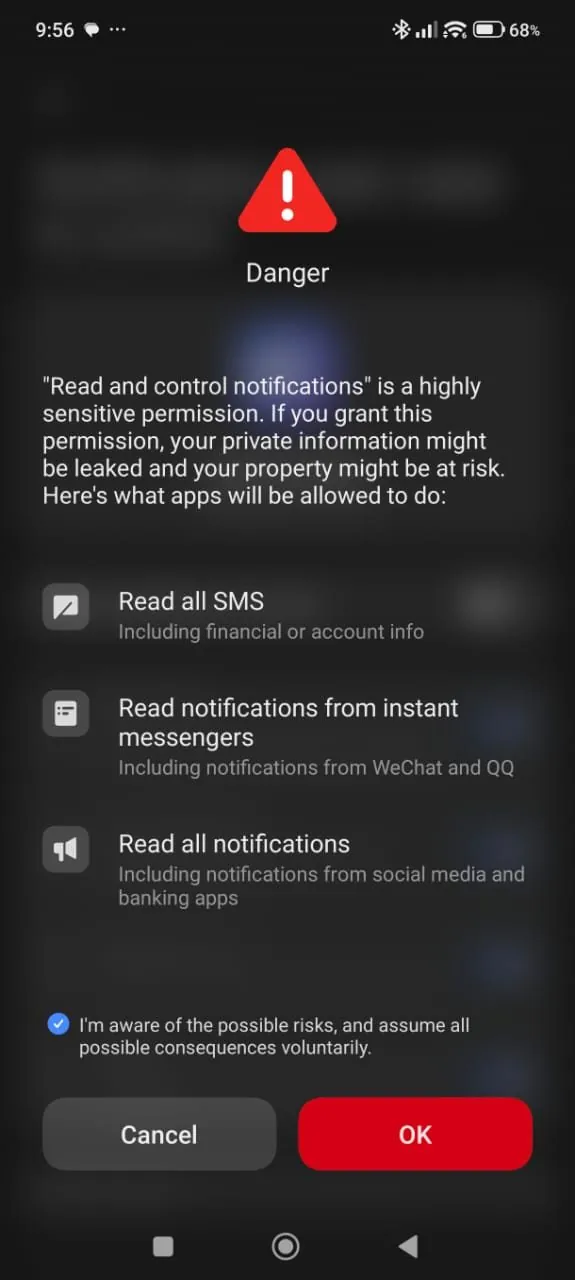
About the red warning: HyperOS shows it for every app that uses notification access, such as smartwatch and notification history apps. The list on that screen is Xiaomi's general text for this permission. Notify Both only uses the access to know when to play a sound. It does not read or save your messages, never sends your personal data anywhere and does not collect any data from your phone.
Turn on Autostart in HyperOS
HyperOS won't start the app in the background until this is on.
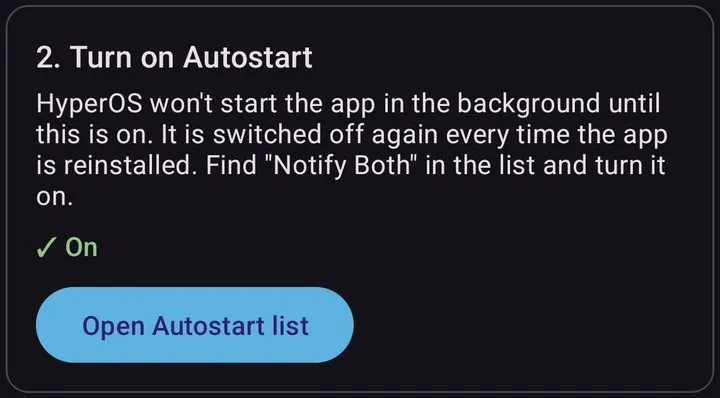
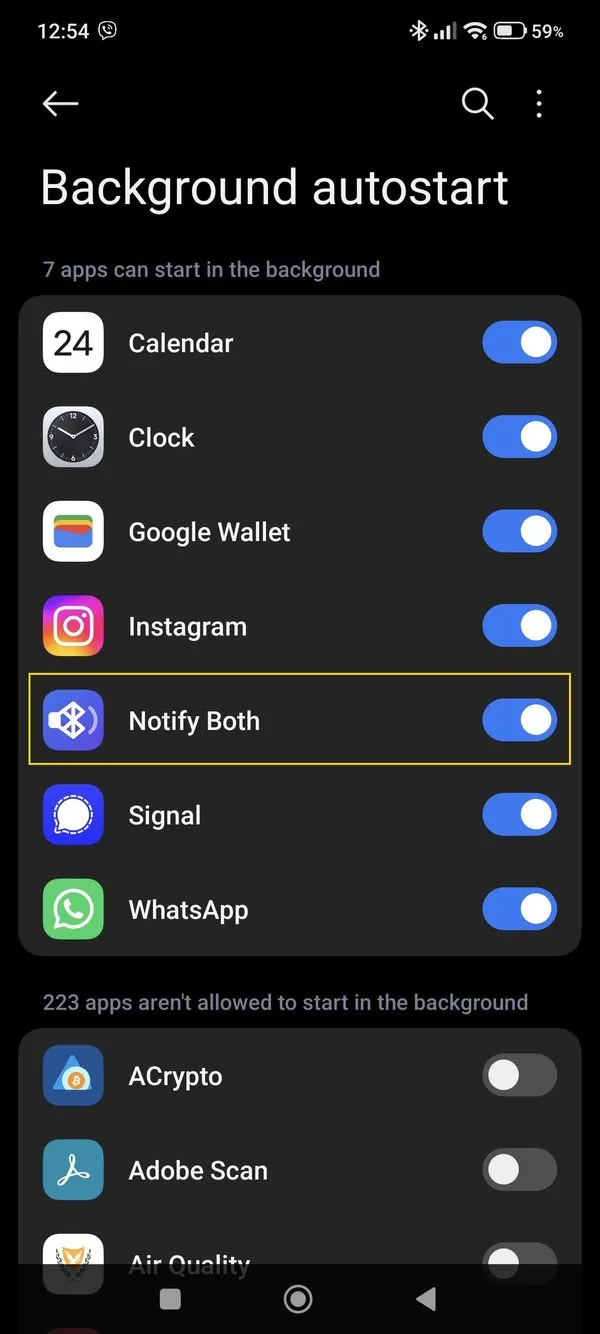
HyperOS turns Autostart off again every time the app is reinstalled. If the app stops working after a reinstall, check this step first.
Remove battery restrictions
Stops the phone from pausing the app to save battery. There are two settings.
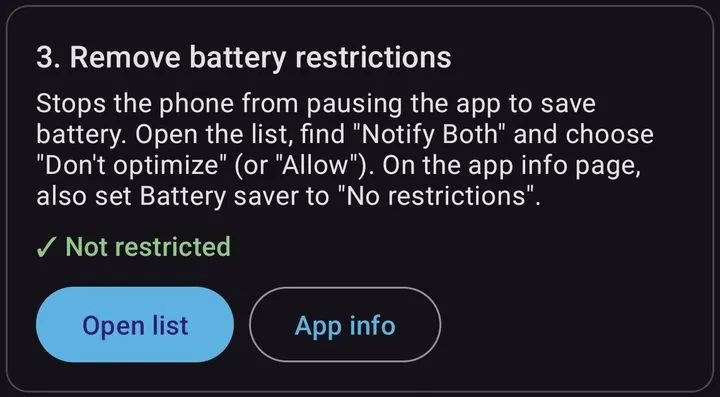
Swipe to see all pictures →
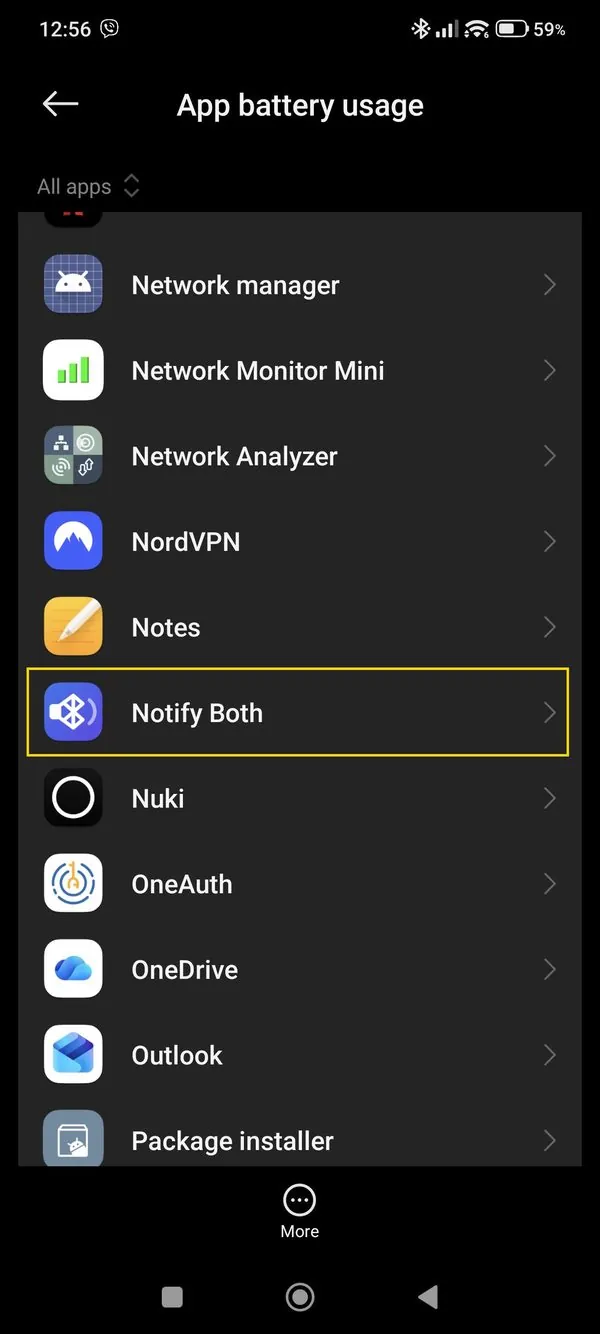
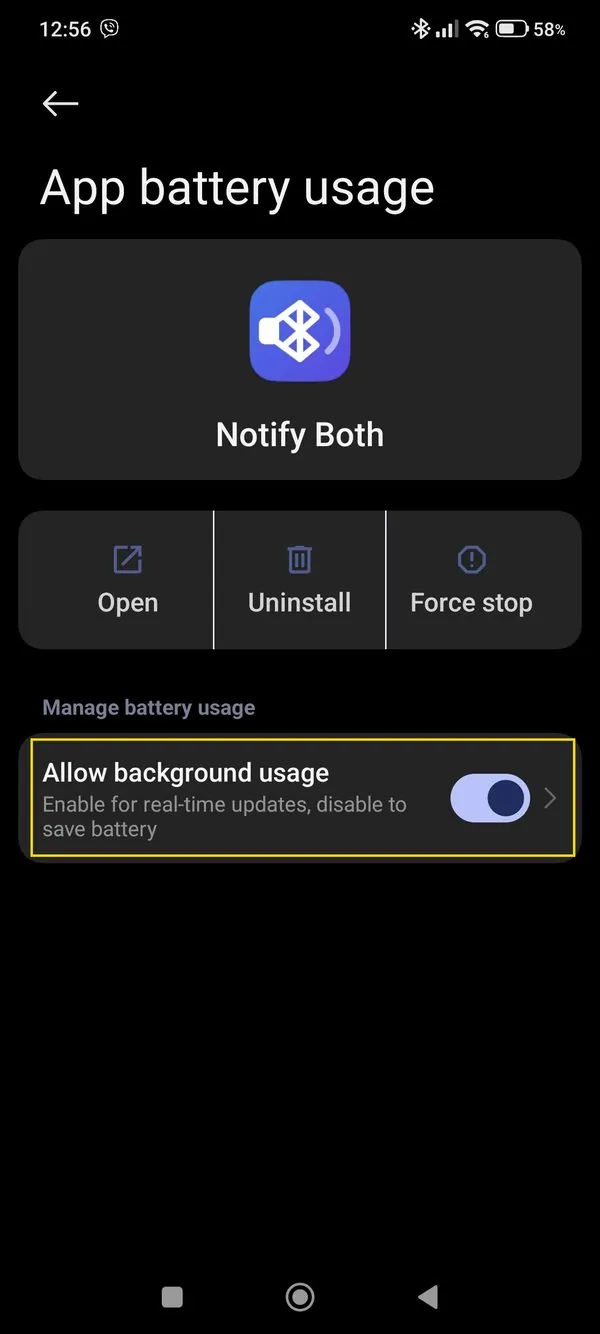
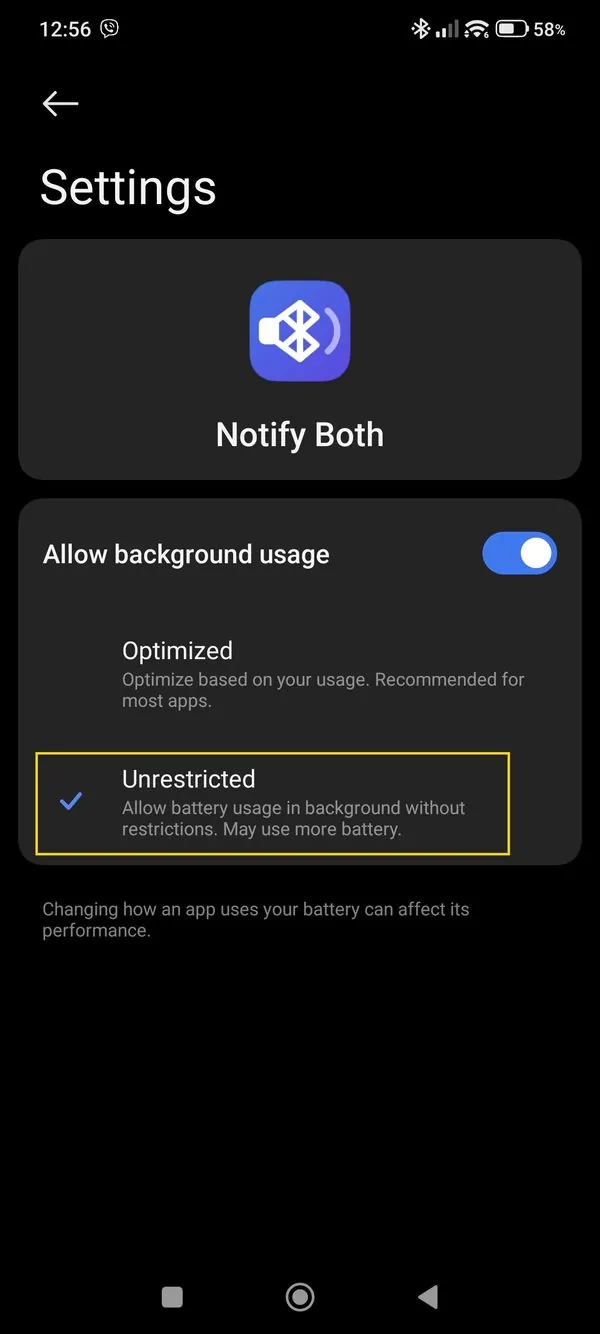
Swipe to see all pictures →
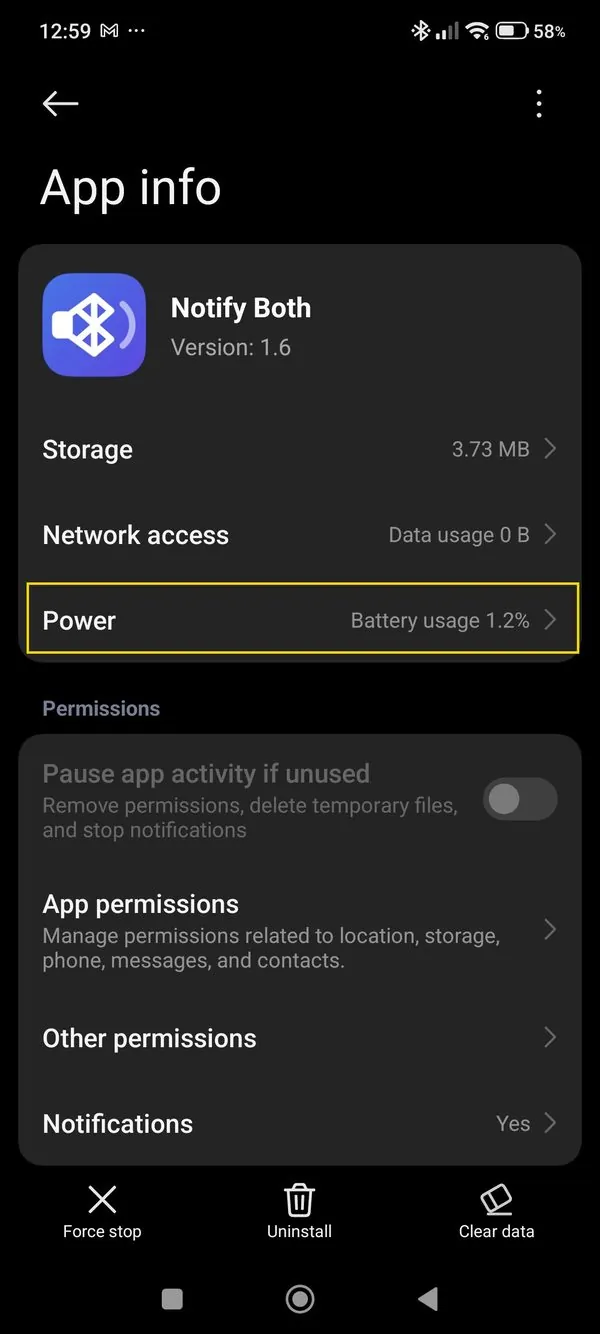
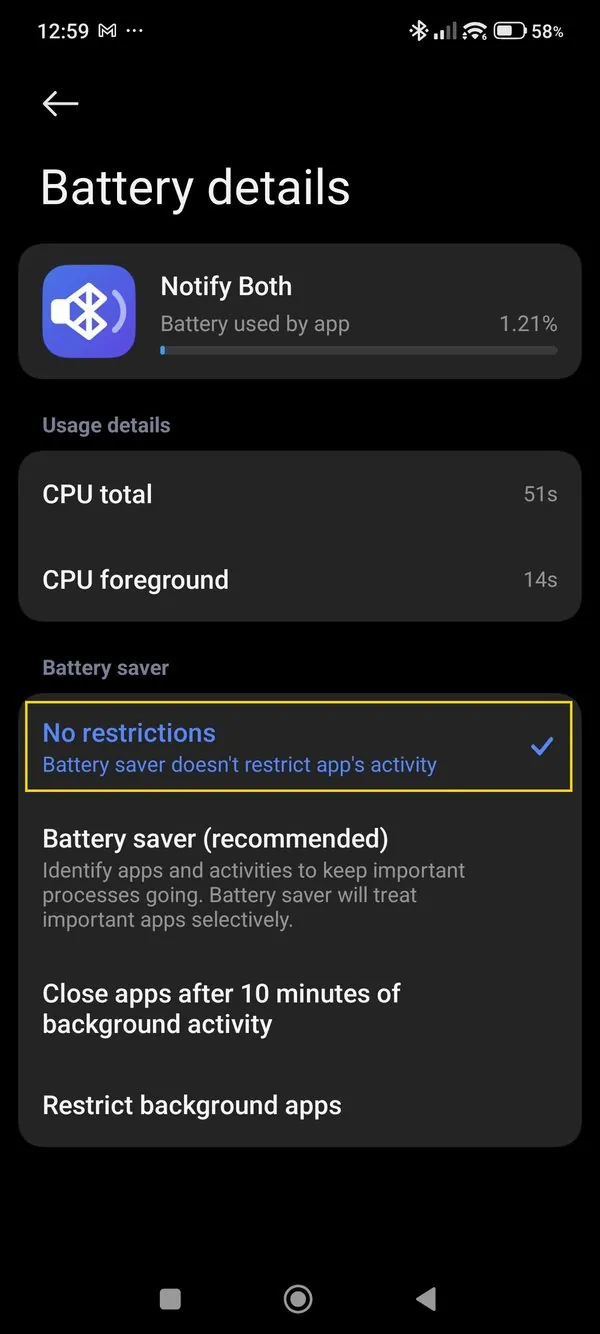
This does not make the app drain your battery. It only wakes up when a notification arrives. On the test phone it showed about 1% battery usage.
Keep the app active when unused
So Android doesn't remove the app's access if you don't open it for a few months.
Check the alarm volume
The app plays notification sounds as alarm sounds, so they can reach the speaker and the headset together.
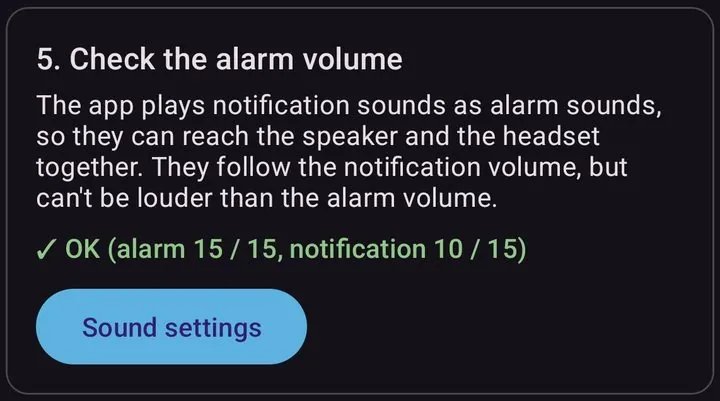
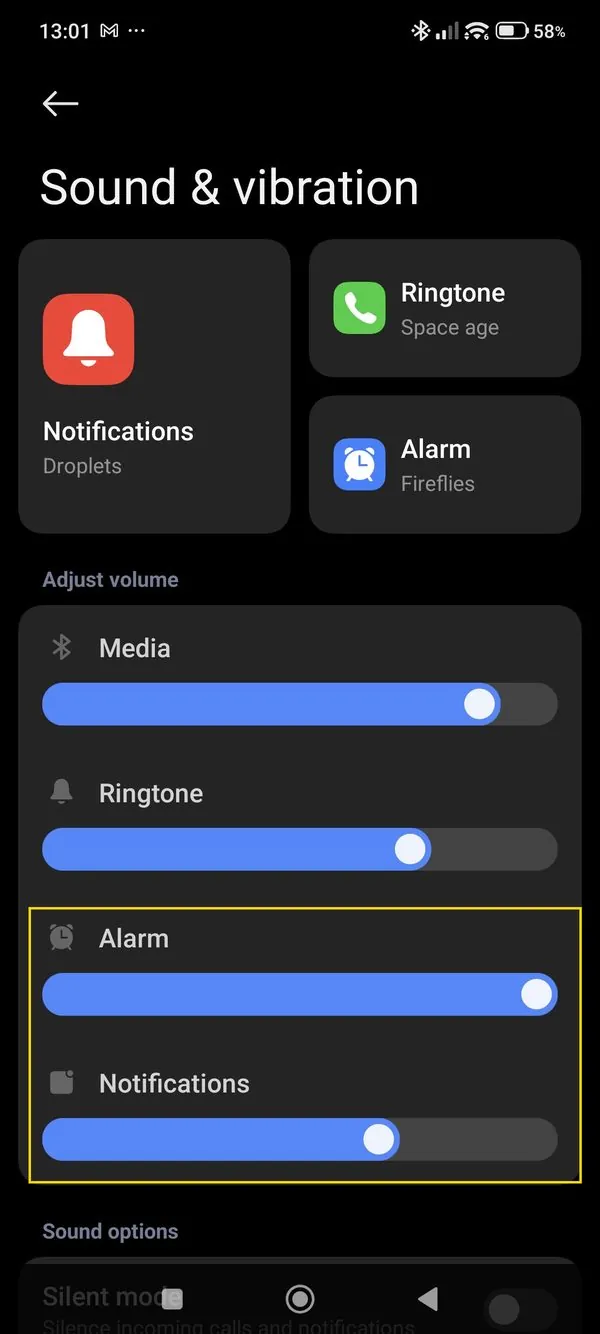
The sounds follow your notification volume, but they can't be louder than the alarm volume. Setting the alarm to maximum is the simplest choice.
Test the speaker and headset sound
Connect your Bluetooth headset, then scroll down in the app to Test and tap Test the app.
Within a few seconds you should hear a notification sound where you chose: the speaker, the headset or both. If you don't, look for a step without a green tick.
Still not working? Turn on Keep a log in the app, wait for the problem to happen again, then tap Email log. We'll help you. You can also write to us by email.
Don't have the app yet?
Try it free on Google Play